ToggleButton
A button that can be toggled on or off, or grouped for multi-selection.
The <ToggleButton> is used when the action itself is the state change, for example favoriting an item, applying bold formatting, or activating a filter. Unlike a regular button that triggers an action and is done, a toggle button visually reflects whether it is currently active or not.
Multiple toggle buttons can be combined using <ToggleButton.Group> for scenarios where users need to toggle several options at once, such as text formatting toolbars or filter bars.
Anatomy
ToggleButton: A toggle button consists of a pressable area containing a label (text, icon, or both) that visually changes to reflect its selected or unselected state.
ToggleButton.Group: A toggle button group is a horizontal container that merges individual toggle buttons into a unified, pill-shaped control. The group removes inner borders and rounds only the outer edges, visually connecting the buttons as a single unit.
Appearance
The appearance of a component can be customized using the variant and size props. These props adjust the visual style and dimensions of the component, available values are based on the active theme.
| Property | Type | Description |
|---|---|---|
variant | - | The available variants of this component. |
size | default | small | icon | The available sizes of this component. |
The ToggleButton component comes in different sizes to fit various contexts.
| Size | Description | When to use |
|---|---|---|
default | Standard button with text label and padding. | General purpose toggle actions with text labels. |
small | Compact button with reduced padding and smaller text. | Space-constrained areas like filter bars or secondary toolbars. |
icon | Square button sized for a single icon, without text padding. | Toolbars and compact controls where icons alone communicate the action. |
Usage
A toggle button is an action-first control that retains state as a consequence of the action. The user presses it to activate or deactivate a function, and the button's appearance reflects whether that function is currently on or off. This makes it different from other boolean controls:
- A Checkbox is a form field. Its effect is deferred until the form is submitted. The user thinks "I am selecting an option."
- A Switch is a settings control. It toggles a persistent system state immediately, like enabling notifications or dark mode. The user thinks "I am turning this on or off."
- A toggle button lives in toolbars, editors, and interactive surfaces. Its label reads like a function or verb rather than a setting. The user thinks "I am activating this."
Choose a toggle button when the control should look and behave like a button, the state change takes effect immediately, and the context is an interactive surface rather than a form or settings panel.
Use ToggleButton for actions where the pressed state is the outcome, like bold formatting or favoriting.
Don't use ToggleButton for settings or preferences that take effect immediately. Use a Switch instead.
Standalone toggle
A single <ToggleButton> is suitable for binary actions where the pressed state is the outcome. The button's visual state reflects whether it is currently active or not. Common examples include favoriting an item, bookmarking a page, or pinning a message.
Use the selected and onChange props to control the toggle state. In the example below, each card has a heart toggle that lets users mark venues as favorites.

Main Street Park Amphitheater

Shakytown Comedy Club
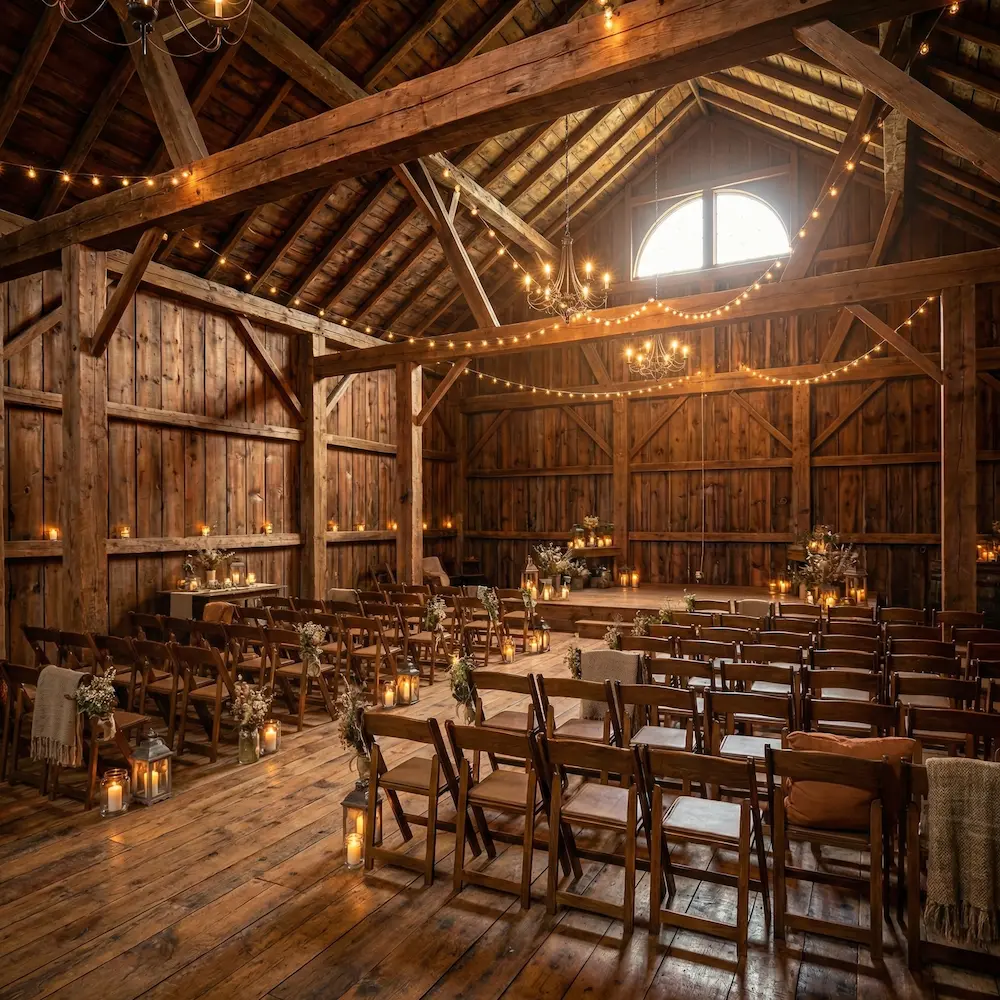
Oak Ridge Barn
import { venueTypes, venues } from '@/lib/data/venues';import { Heart, MapPin, Users } from 'lucide-react';import { useState } from 'react';import { Badge, Card, Headline, Inline, Stack, Text, ToggleButton,} from '@marigold/components';export default () => { const [favorites, setFavorites] = useState<Set<string>>(new Set()); const toggle = (id: string) => setFavorites(prev => { const next = new Set(prev); if (next.has(id)) { next.delete(id); } else { next.add(id); } return next; }); return ( <Stack space={3}> {venues.slice(0, 3).map(venue => ( <Card key={venue.id} stretch> <div className="flex gap-4"> <img src={venue.image} alt={venue.name} className="size-28 shrink-0 rounded-lg object-cover" /> <div className="flex min-w-0 flex-1 flex-col justify-between py-1"> <Inline alignX="between" alignY="top" space={3}> <Stack space={0.5}> <Headline level={4}>{venue.name}</Headline> <Inline space={1} alignY="center"> <MapPin className="text-secondary-500 size-3.5" /> <Text size="xs"> {venue.city}, {venue.country} </Text> </Inline> </Stack> <ToggleButton size="icon" selected={favorites.has(venue.id)} onChange={() => toggle(venue.id)} aria-label={ favorites.has(venue.id) ? `Remove ${venue.name} from favorites` : `Add ${venue.name} to favorites` } > <Heart fill={favorites.has(venue.id) ? 'currentColor' : 'none'} /> </ToggleButton> </Inline> <Inline space={2}> <Badge>{venueTypes[venue.type]}</Badge> <Badge> <Inline space={1} alignY="center"> <Users className="size-3" /> {venue.capacity} </Inline> </Badge> </Inline> </div> </div> </Card> ))} </Stack> );};Combining multiple toggles
When multiple related toggle actions belong together, wrap them in a <ToggleButton.Group>. The group merges the buttons into a single visual unit and manages selection state for you. Set selectionMode="multiple" so users can activate any combination of options independently.
A toggle button group is particularly useful for toolbars where several options can be active at the same time, such as text formatting controls. The group visually communicates that the options are related, while each button can still be toggled on its own.
Use the icon size when the action can be communicated through an icon alone. Add a <Tooltip> to help sighted users understand the action, and always provide an aria-label for screen readers.
import { Bold, Italic, Underline } from 'lucide-react';import { Inline, ToggleButton, Tooltip } from '@marigold/components';export default () => ( <Inline alignX="center"> <ToggleButton.Group selectionMode="multiple" size="icon"> <Tooltip.Trigger> <ToggleButton id="bold" aria-label="Bold"> <Bold /> </ToggleButton> <Tooltip>Bold</Tooltip> </Tooltip.Trigger> <Tooltip.Trigger> <ToggleButton id="italic" aria-label="Italic"> <Italic /> </ToggleButton> <Tooltip>Italic</Tooltip> </Tooltip.Trigger> <Tooltip.Trigger> <ToggleButton id="underline" aria-label="Underline"> <Underline /> </ToggleButton> <Tooltip>Underline</Tooltip> </Tooltip.Trigger> </ToggleButton.Group> </Inline>);Keep it accessible
Icon-only toggle buttons must have an aria-label to communicate their
purpose to screen readers. A tooltip alone is not sufficient since it is not
accessible on all devices or by some assistive technologies.
Always provide an aria-label for icon-only toggle buttons.
Selection modes
<ToggleButton.Group> supports different selection modes through the selectionMode prop. Use "multiple" when users should be able to activate any combination of options, and "single" when only one option can be active at a time.
Multiple selection is a good fit when options are additive and non-exclusive, for example narrowing down a list by combining several criteria. Single selection works when options are mutually exclusive, such as choosing between different sort orders.
This pattern works best with text-labeled buttons when the number of options is small (under 10) and labels are short enough to fit on a single row.
Main Street Park Amphitheater
Shakytown Comedy Club
Oak Ridge Barn

Harborfront Promenade

Cellar Lounge
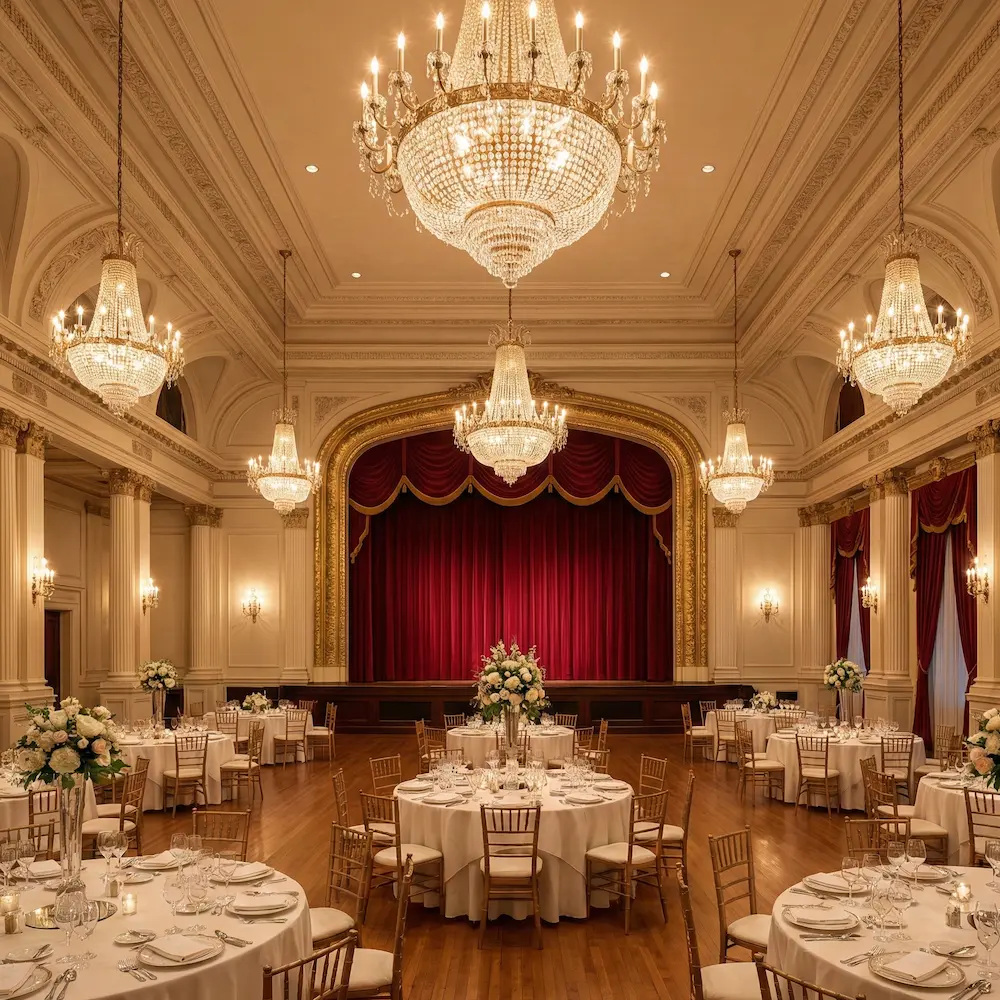
Grand Avenue Ballroom

Maple Court Theatre

Broadway Community Center
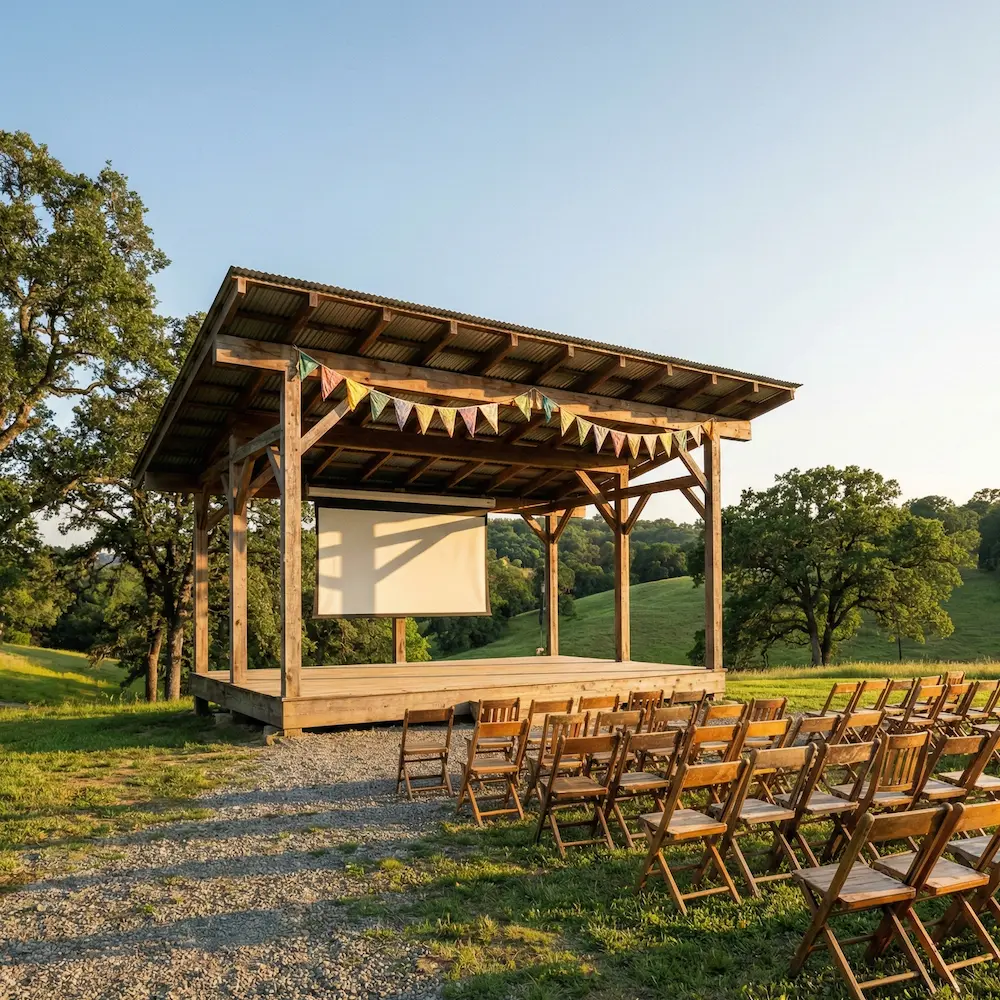
Hillcrest Open Pavilion
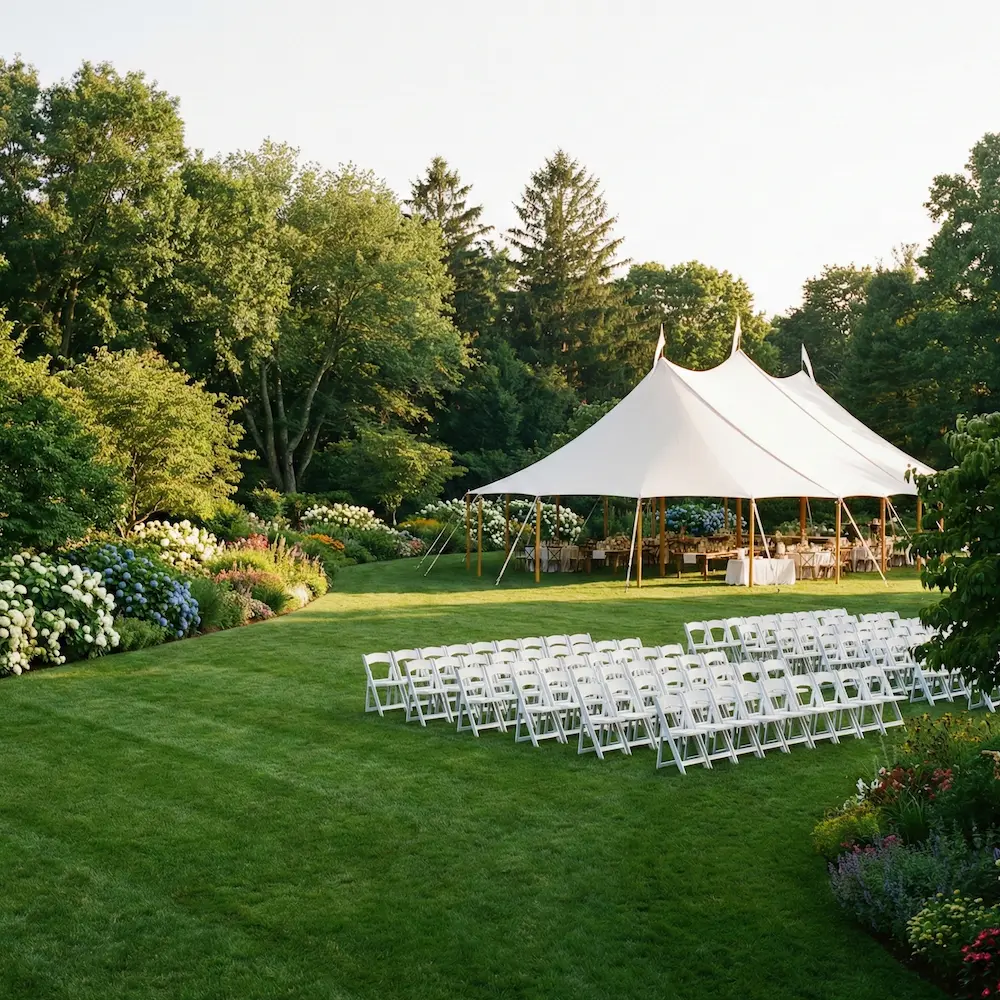
Bloomfield Garden Lawn
import { venueTraits, venueTypes, venues } from '@/lib/data/venues';import { MapPin, Users } from 'lucide-react';import { useState } from 'react';import type { Selection } from '@marigold/components';import { Badge, Card, Headline, Inline, Stack, Text, Tiles, ToggleButton,} from '@marigold/components';export default () => { const [selected, setSelected] = useState<Selection>(new Set()); const filtered = selected === 'all' || (selected instanceof Set && selected.size === 0) ? venues : venues.filter(v => v.traits.some(t => (selected as Set<string>).has(t)) ); return ( <Stack space={4} stretch> <Inline> <ToggleButton.Group selectionMode="multiple" selectedKeys={selected} onSelectionChange={setSelected} size="small" > {venueTraits.map(trait => ( <ToggleButton key={trait} id={trait}> {trait} </ToggleButton> ))} </ToggleButton.Group> </Inline> <Text size="sm"> Showing {filtered.length} of {venues.length} venues </Text> <Tiles tilesWidth="200px" space={3} stretch> {filtered.map(venue => ( <Card key={venue.id} stretch> <Stack space={2}> <img src={venue.image} alt={venue.name} className="h-28 w-full rounded-lg object-cover" /> <Stack space={1}> <Headline level={4}>{venue.name}</Headline> <Inline space={1} alignY="center"> <MapPin className="text-secondary-500 size-3.5 shrink-0" /> <Text size="xs">{venue.city}</Text> </Inline> </Stack> <Inline space={2}> <Badge>{venueTypes[venue.type]}</Badge> <Badge> <Inline space={1} alignY="center"> <Users className="size-3" /> {venue.capacity} </Inline> </Badge> </Inline> </Stack> </Card> ))} </Tiles> </Stack> );};Don't use ToggleButton.Group for switching between views or pages. Use Tabs when navigation is involved.
Disabled state
Toggle buttons support a disabled prop to prevent interaction. You can disable individual buttons or an entire group.
Use disabled states when an option is temporarily unavailable due to the current context, for example when a certain capability is not supported for the selected content type, or when a feature requires a higher subscription plan. Avoid disabling buttons without providing a reason. Users should be able to understand why an option is not available.
import { Bold, Italic, Strikethrough, Underline } from 'lucide-react';import { Stack, Text, ToggleButton } from '@marigold/components';export default () => ( <Stack space={4}> <Stack space={1} alignX="left"> <Text weight="bold">Individual disabled button</Text> <ToggleButton.Group selectionMode="multiple" size="icon"> <ToggleButton id="bold" aria-label="Bold"> <Bold /> </ToggleButton> <ToggleButton id="italic" aria-label="Italic"> <Italic /> </ToggleButton> <ToggleButton id="strikethrough" aria-label="Strikethrough" disabled> <Strikethrough /> </ToggleButton> <ToggleButton id="underline" aria-label="Underline"> <Underline /> </ToggleButton> </ToggleButton.Group> </Stack> <Stack space={1} alignX="left"> <Text weight="bold">Entire group disabled</Text> <ToggleButton.Group selectionMode="multiple" size="icon" disabled> <ToggleButton id="bold" aria-label="Bold"> <Bold /> </ToggleButton> <ToggleButton id="italic" aria-label="Italic"> <Italic /> </ToggleButton> <ToggleButton id="underline" aria-label="Underline"> <Underline /> </ToggleButton> </ToggleButton.Group> </Stack> </Stack>);Props
ToggleButton
Prop
Type
ToggleButton.Group
Prop
Type
Alternative components
- Switch: Use when toggling a setting or preference on/off with immediate effect.
- Checkbox: Use when selecting options within a form that requires submission.
- Tabs: Use when switching between views that involve navigation.
- Button: Use when the action is one-off and does not hold persistent state.